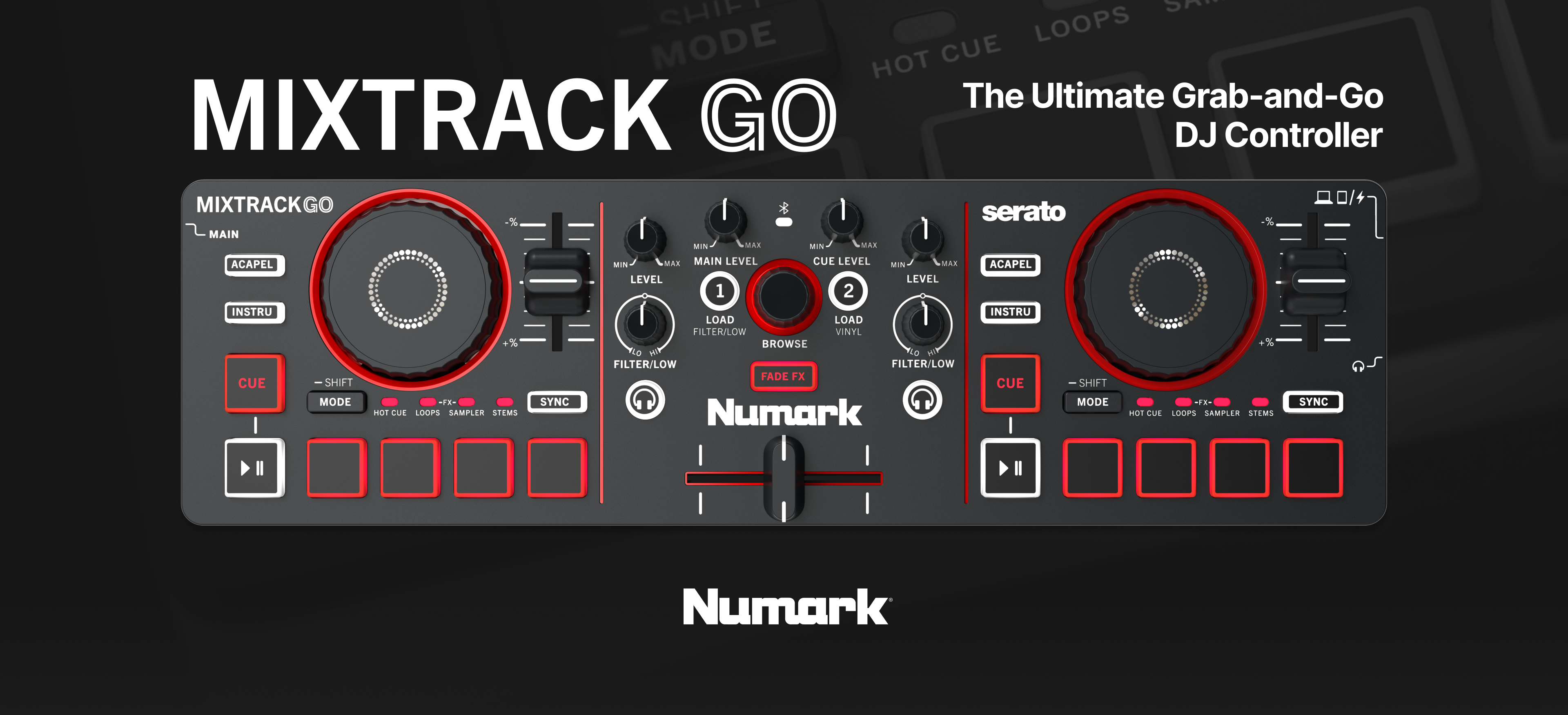
The Numark MixTrack Go is an ultra‑compact DJ controller designed for busy DJs on the move. A handy creative tool for DJs of all ages and skill levels, this controller makes it easy to learn, practice, and perform in any setting. Below, we've detailed answers to some of the most frequently asked questions regarding the MixTrack Go.
TABLE OF CONTENTS
- Official Overview Video and Setup Guide
- What’s included in the box?
- What DJ software is included with MixTrack Go, and what platforms are compatible?
- What djay features are unlocked when I connect my Mixtrack Go? Which features require a subscription?
- Does the MixTrack Go support Stems control?
- What pad modes are available on the MixTrack Go?
- Can I use the MixTrack Go with my smartphone or tablet?
- Is the MixTrack Go bus powered?
- Why don’t I hear audio from my headphones or speaker when using Bluetooth MIDI?
- Where do I connect speakers and headphones?
- What are Fade FX?
- Why doesn’t my MixTrack Go connect to my DJ app when I pair it through my device’s Bluetooth settings?
- Why is the Bluetooth LED flashing and audio popping coming from the Main outputs when I power the MixTrack Go from my mobile device?
- Why doesn't my device automatically reconnect to djay over Bluetooth after turning Bluetooth off and back on?
- What are the dimensions and weight of the MixTrack Go?
- What are the MixTrack Go's audio specs and driver requirements?
Official Overview Video and Setup Guide
What’s included in the box?
- MixTrack Go
USB-C Cable
Software Download Card
Smartphone/Tablet Stand
1/8” to Stereo RCA adapter
Quickstart Guide
Safety & Warranty Manual
What DJ software is included with MixTrack Go, and what platforms are compatible?
The Mixtrack Go is plug-and-play compatible with Algoriddim djay Pro and Serato DJ Lite, both included with your purchase.
The MixTrack Go will also work with Serato DJ Pro and VirtualDJ, which require a separate paid license.
Free Software
| Mac/Win
| iOS
| Android
|
|---|---|---|---|
Serato DJ Lite | ✅ | ⛔ | ⛔ |
Algoriddim djay PRO | ✅ | ✅ | ✅ |
Paid Software | |||
Serato DJ Pro | ✅ | ⛔ | ⛔ |
Virtual DJ Pro | ✅ | ⛔ | ⛔ |
What djay features are unlocked when I connect my Mixtrack Go? Which features require a subscription?
As a general rule, any feature with a dedicated hardware control on the device is unlocked and ready to use at no additional cost.
Additional djay features that are not mapped to hardware controls may require a paid subscription.
Pro features that are unlocked with hardware:
- Neural Mix™ – isolate vocals, drums, and instrumentals in real time
- Pre-cueing with headphones
- Instant FX - dedicated pad mode with dynamic instant FX
- Sampler – add beats, textures, and live remix elements
- Crossfader FX – perform expressive, dynamic transitions
Pro features that require a subscription:
- Automix – AI-powered automatic DJ mixes
- Looper – add beats, textures, and live remix elements
- Video Mixing – mix music videos, add overlays, and output visuals to an external screen
- Recording – capture your mixes in high-quality audio
- Content Packs – 50+ audio effects, 1000+ loops, samples, visuals
- 4-Deck Mode – layer multiple tracks and stems
- Advanced MIDI Learn to customize mappings
- Full media library editing – edit track information and manage your collection with flexible tools
- Custom playlists and preparation tools – create and organize playlists to prepare for any performance
- USB library export - export your playlists and tracks from djay directly to a USB or SD drive for use on other devices or DJ systems
- Library Batch Analysis - background analysis of your tracks
Does the MixTrack Go support Stems control?
The MixTrack Go features a Stems pad mode as well as Acapella and Instrumental buttons to isolate vocals and instrumentals on the fly.
What pad modes are available on the MixTrack Go?
Available pad modes include:
- Hot Cue
- Loops
- FX
- Sampler
- Stems
Can I use the MixTrack Go with my smartphone or tablet?
Yes! This is one of the highlights of the MixTrack Go! You can connect the MixTrack Go to your smartphone or tablet using either the included USB-C cable or via a Bluetooth connection.
Note: For improved battery life on mobile devices, use wireless charging if available for your device, or connect to a powered USB hub that can provide both power to MixTrack Go and connection with your device.
Is the MixTrack Go bus powered?
The MixTrack Go is bus powered but can also be powered via a USB power adapter for when using Bluetooth connection. Power adapters must have a minimum 5V, 500mA power rating to use Bluetooth with MixTrack Go.
Why don’t I hear audio from my headphones or speaker when using Bluetooth MIDI?
When using Bluetooth MIDI, the MixTrack Go’s audio outputs are disabled. You will need to monitor playback using the built-in speaker on your phone or tablet, or you can connect your speakers or headphones directly to your mobile device.*
*A separate adapter may be needed if your smartphone or tablet does not feature a headphone jack.
Where do I connect speakers and headphones?
- Speakers connect to the main output using the included 1/8" to RCA adapter
- Headphones connect directly to the 1/8" (3.5 mm) headphone output. The headphone volume is controlled using the Cue Gain knob.
What are Fade FX?
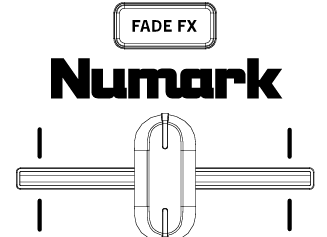
When enabled, the Fade FX button enabled the Fade FX feature in your DJ software. This automatically applies a particular effect when moving the crossfader away from your active deck.
Why doesn’t my MixTrack Go connect to my DJ app when I pair it through my device’s Bluetooth settings?
Pairing your MixTrack Go through your computer, phone, or tablet’s standard Bluetooth settings will not connect it to your DJ app.
To use your MixTrack Go with your DJ software, you’ll need to connect it as a Bluetooth MIDI device in the DJ app.
For best results:
- Open your DJ app.
- Navigate to the Bluetooth MIDI settings.
- Select your MixTrack Go from the list to establish the connection.
This method ensures proper communication between your MixTrack Go and the software.
Why is the Bluetooth LED flashing and audio popping coming from the Main outputs when I power the MixTrack Go from my mobile device?
If the Bluetooth LED on your device is flashing continuously, and you're hearing popping sounds from the Main outputs, it's likely that your mobile device isn't supplying enough power to the MixTrack Go.
To resolve this issue:
- Connect the MixTrack Go to a USB power adapter using the USB-C power port (indicated by the lightning bolt icon.
- Then, connect your mobile device to the MixTrack Go using the USB-C device port (indicated by a computer icon).
Providing external power ensures stable performance and prevents audio issues.
Why doesn't my device automatically reconnect to djay over Bluetooth after turning Bluetooth off and back on?
After Bluetooth is turned off and then re-enabled on your phone, tablet, or computer, your device will not automatically reconnect to djay via Bluetooth. To re-establish the connection, you’ll need to manually select your MIDI device again within the djay app.
What are the dimensions and weight of the MixTrack Go?
- Dimensions (L x W x H)
- 12.76” x 3.66” x 1.56”
- 324 x 93 x 40 mm
- Weight
- 1.32 lbs. / 0.6 kg.
What are the MixTrack Go's audio specs and driver requirements?
- Audio: 24-bit / 48 kHz resolution
- Driver: None / Class-compliant
Was this article helpful?
That’s Great!
Thank you for your feedback
Sorry! We couldn't be helpful
Thank you for your feedback
Feedback sent
We appreciate your effort and will try to fix the article