If you're experiencing pops, clicks, dropouts, or unexpected audio device disconnections on Windows, DPC latency may be the cause. This guide walks through how to identify and resolve it step by step.
TABLE OF CONTENTS
- Common Symptoms
- What is DPC?
- Confirm if DPC Latency is the Issue
- Quick Fix Checklist
- Identify Outdated or Problematic Drivers (Device Manager)
- Check Drivers and System Integrity
- Network-Related Issues
- Advanced Troubleshooting
Common Symptoms
- Pops, clicks, crackling
- Audio dropouts or stuttering
- Audio interface disconnecting unexpectedly
- High CPU usage or performance spikes during playback
- Issues persist even after increasing buffer size
- Problems occur when using certain plugins or heavier sessions
What is DPC?
DPC (Deferred Procedure Call) is how Windows prioritizes system tasks and drivers.
If background processes or drivers take too long to complete, they can interrupt real-time audio processing, leading to clicks, pops, or dropouts.
A common cause of DPC latency issues is outdated or poorly performing device drivers.
Confirm if DPC Latency is the Issue
To check if DPC latency is causing your problem, use a free tool called LatencyMon:
- Download and install LatencyMon
- Open the program and press Start
- Play audio through your interface (DAW, streaming audio, etc.)
- Let it run for several minutes
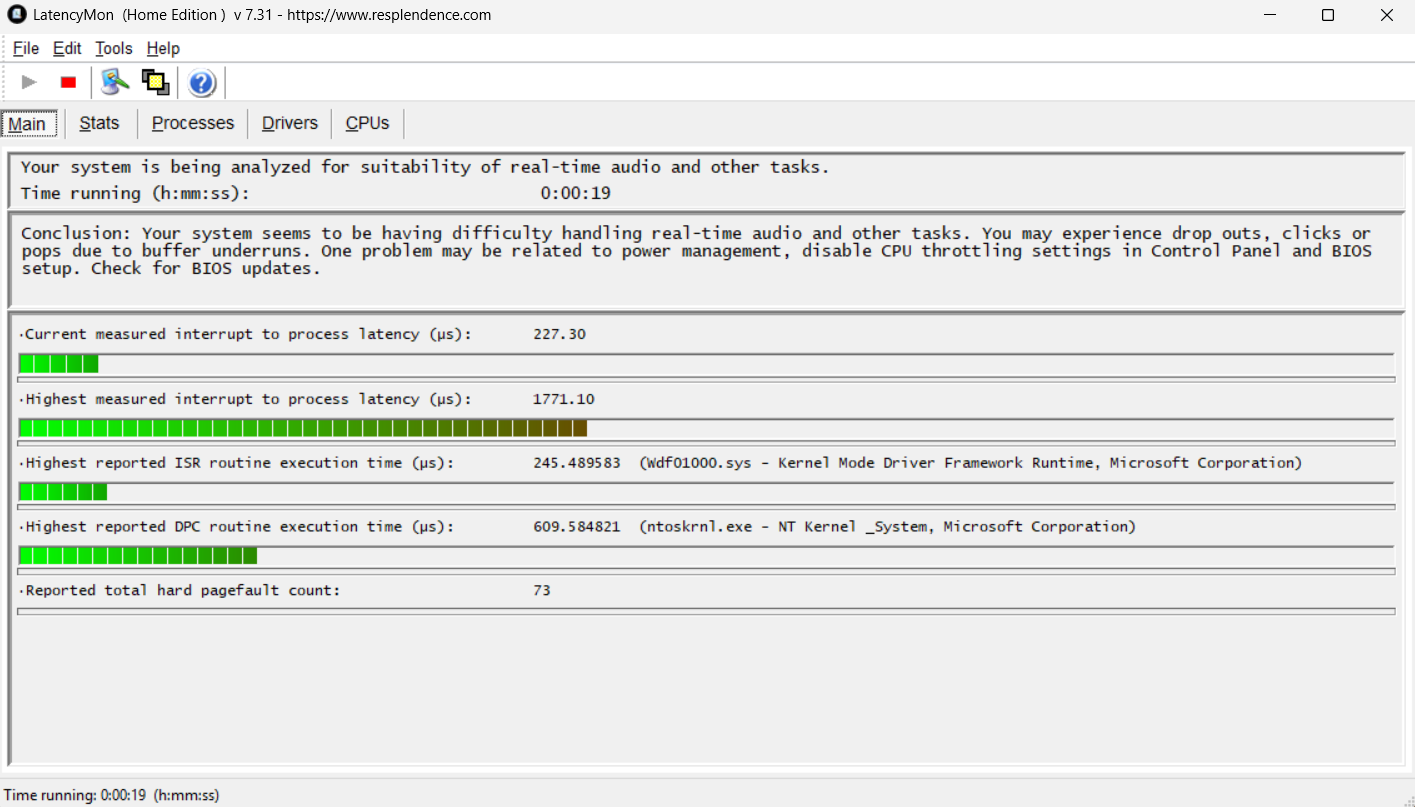
What to look for
- If no issues are detected → DPC latency is likely not the cause
- If warnings appear (red text) → DPC latency is detected
- The tool will list the drivers/processes responsible

If LatencyMon reports issues, follow the steps below. Start with the quick fixes, then continue to deeper troubleshooting if needed.
Quick Fix Checklist
Before going deeper, try the following:
Power cycle your computer
Fully shut down your computer, wait a few seconds, then power it back on. This helps clear temporary system states and ensures any corrupted data in memory is fully reset.
Perform the latest Windows updates
Keeping Windows fully up to date ensures your system has the latest fixes for performance and driver-related issues.
Update Windows fully
Check the manufacturer’s support page for your audio interface and install the latest available drivers. Outdated drivers are one of the most common causes of DPC latency issues.
Close background apps
Close any unnecessary background applications that may be using CPU resources.
You can open Task Manager (Ctrl + Shift + Esc) and sort by CPU usage to identify processes that may be impacting performance.
High Performance mode
Set your system to High Performance mode (laptop users)
On laptops, power-saving settings can reduce CPU performance and affect real-time audio processing. Switching to a High Performance power plan can help ensure consistent performance while using audio software.
Identify Outdated or Problematic Drivers (Device Manager)
Since DPC latency issues are often related to drivers, the next step is to identify whether a device driver may be outdated, conflicting, or not functioning correctly.
Use Device Manager to check drivers
Device Manager allows you to review the status of your system’s hardware and drivers.
- Right-click the Windows Start button → Device Manager
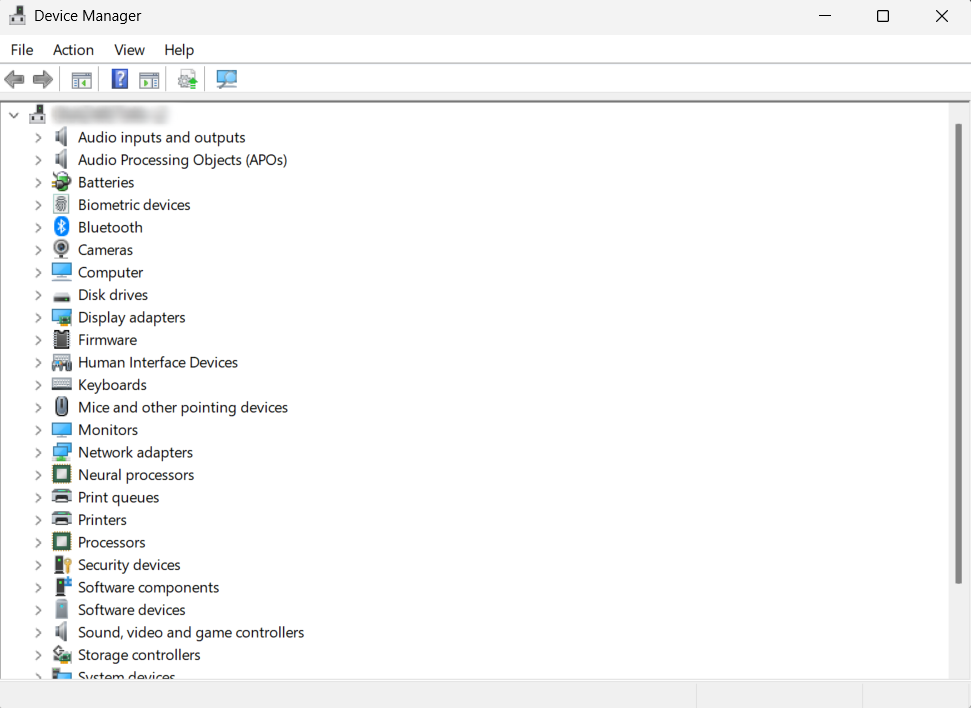
- Look for any devices with warning icons (such as a yellow triangle)
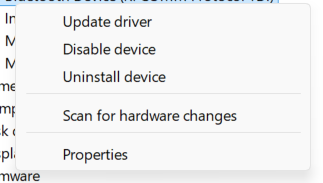
- Right-click a device and select Update driver to check for updates
Isolate problematic devices (if needed)
If no obvious issues are found, you can use a process of elimination to identify the cause:
- In Device Manager, temporarily disable one non-essential device at a time (such as unused audio devices or network adapters)
- Run LatencyMon again after each change
- Monitor whether the reported latency improves
If disabling a device resolves the issue, that device or its driver is likely contributing to the problem.
Common devices that may cause DPC latency
Systems with multiple active audio devices (such as an audio interface and onboard sound card) may experience conflicts that impact performance. Some examples are:
- Multiple audio devices (e.g., audio interface + onboard sound card)
- Network / WiFi adapters
- Graphics drivers
- Card readers
In many systems, having multiple audio devices or active network drivers can lead to interruptions in real-time audio processing.
Check Drivers and System Integrity
If issues continue, check your system files and drivers.
Update drivers
- Use Windows Update
- Check your manufacturer’s website (PC, motherboard, GPU, etc.)
Run System File Checker (SFC)
- Open Start menu → type cmd
- Right-click → Run as Administrator
- Enter
sfc /scannow
- Restart once complete
If LatencyMon flags specific drivers
Some common examples include:
- Network drivers (ndis.sys)
- Storage drivers (storport.sys)
- USB/chipset drivers
In these cases:
- Update the related driver from the manufacturer’s site
- Test again!
Network-Related Issues
Network drivers are one of the most common causes of DPC latency on Windows systems.
Try the following:
- Temporarily disable WiFi in Device Manager
- Update network adapter drivers
- Test with WiFi off vs. on
Advanced Troubleshooting
For more persistent issues:
Check Disk & System Health
Run the following in Command Prompt (Admin):
chkdsk c: /r
BIOS & Power Settings
- Ensure BIOS is up to date
- Disable aggressive power-saving features if needed
- Set system to High Performance mode
IRQ Conflicts
This step is for advanced users and is not required in most cases. You can check for hardware conflicts:
- Open Device Manager
- Go to View → Resources by type
- Expand Interrupt request (IRQ)
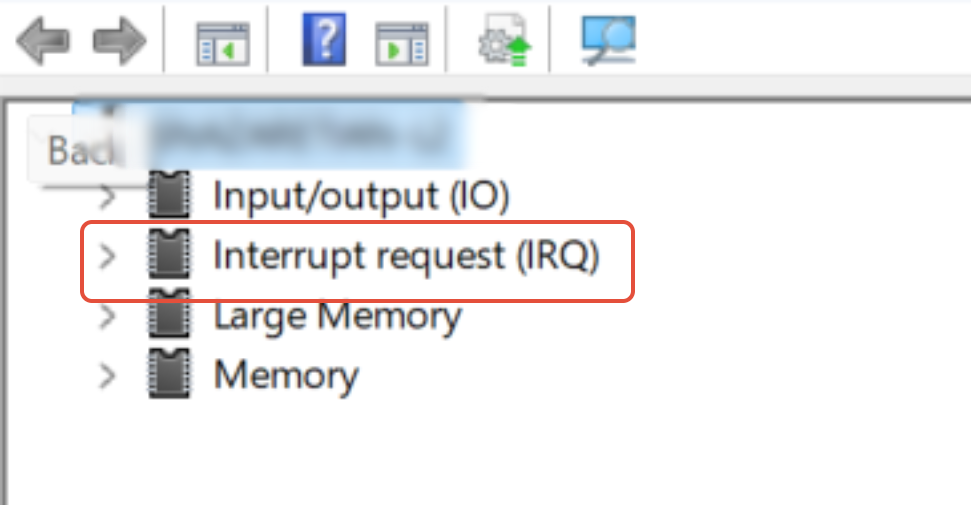
Devices sharing IRQs may cause conflicts, though this is less common on modern systems.
When to Contact Support
If the issue persists, please provide:
- A screenshot of your LatencyMon results
- Send over an NFO file. If you need help searching for this information, view this article: Tips & Tricks | How to Export your System Information File
- Your audio interface model
- What steps you’ve already tried
Once you confirm all of this information, please submit a support ticket [HERE]. This will help us identify the cause more quickly!
Was this article helpful?
That’s Great!
Thank you for your feedback
Sorry! We couldn't be helpful
Thank you for your feedback
Feedback sent
We appreciate your effort and will try to fix the article